
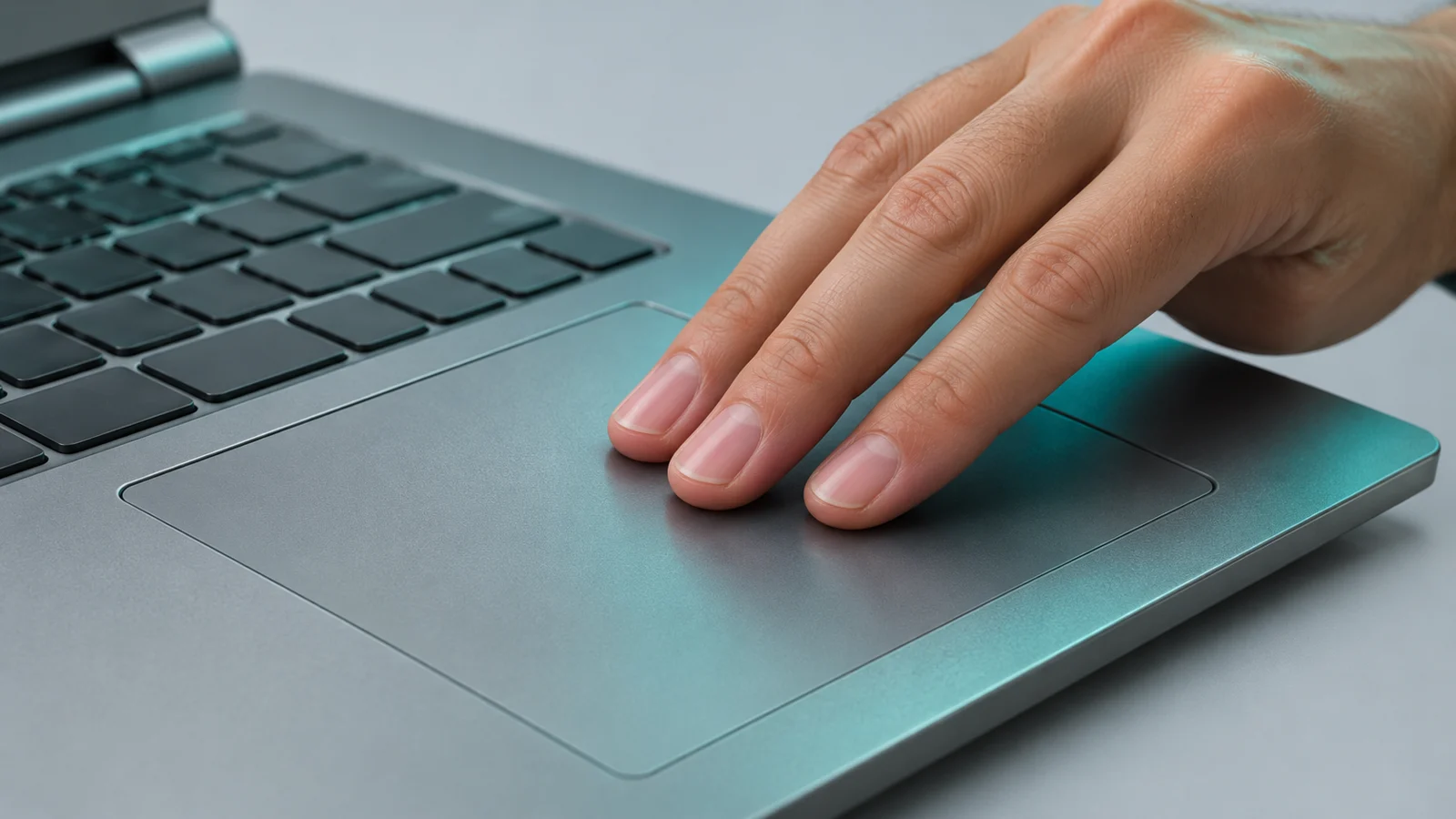
If you have seen instructions for new three-finger Magnifier gestures and cannot reproduce them, check the Windows build before troubleshooting your touchpad. Microsoft’s latest documentation places those controls in a specific preview release. It does not establish that every Windows 11 computer has received them.
That distinction matters because a familiar feature name can appear in several update announcements while the changes themselves differ.
Which release documents the gestures?
Microsoft’s 16 November 2026 Insider announcement introduces new preview builds. The detailed Experimental build 26340.10013 release notes document the Magnifier touchpad and touchscreen controls.
These are preview changes. Microsoft warns that Experimental features can reach only a subset of participants, change or never ship. Having the documented build is therefore a useful first check, not a guarantee that every related control is present.
Do not join an experimental channel simply to make an online gesture tutorial match your everyday computer. Start with the Magnifier controls your current system actually provides.
Touchpad and touchscreen instructions are different
The Experimental notes describe these actions while Magnifier is running:
- Touchpad: a three-finger upward or downward swipe changes zoom. A three-finger tap switches between 100% and the previous zoom level. Ordinary pointer movement pans the magnified view.
- Touchscreen: three-finger dragging pans. For zoom, the documented sequence is a three-finger tap followed by a tap-and-hold and an upward or downward drag. A three-finger double-tap switches between 100% and the previous zoom level.
These are Microsoft’s documented interactions, not results from a SunloopMedia touch-device test. A touchscreen sequence should not be presented as interchangeable with a touchpad swipe.
The same release notes describe separate Magnifier settings for touchpad and touch gestures under Settings → Accessibility → Magnifier. Both are on by default in that preview description. If the controls are present but you do not want them, review those individual switches rather than changing unrelated input settings.
“Preview update” does not always mean the same channel
The 19 November KB5132057 servicing preview covers Windows 11 25H2 and 26H2 builds 26200.10075 and 26300.10075. Its Magnifier changes include a help menu and a setting controlling whether the Windows-key shortcut starts Magnifier. Those notes do not list the new touch gestures.
That is a different release from Experimental build 26340.10013. The word “preview” alone cannot identify which instructions apply. Nor does the absence of the gestures from that servicing document prove they can never appear on another build; it means this document does not establish their availability there.
If you are comparing a news article with your computer, write down the full build and channel named in the source. Compare those with your own system information before treating a missing option as a fault.
Use the existing controls as your starting point
Microsoft’s Windows visibility guidance documents the established keyboard controls: Windows + Plus opens Magnifier, Windows + Plus/Minus changes zoom, and Windows + Escape closes it. The newer servicing preview adds a switch for the start shortcut, so also check that setting if applicable to your build.
For a repeatable setup, make a short note of the zoom level you need, the input device you use and the control that actually works on your computer. If you make a tutorial for someone else, show those starting conditions. Our software walkthrough guide explains how to make the starting state and visible outcome clear.
Check the release boundary before changing the device
A missing preview gesture is not, by itself, evidence of a broken touchpad or touchscreen. First match the release, then look for the relevant setting, and use established controls where the preview feature is unavailable. Keep the experimental instructions separate from the setup you rely on each day.
Editorial record
Testing status: Research / documentation based
No commercial relationships.
SunloopMedia Editorial
Published by SunloopMedia Editorial. Sources, testing state and material corrections are recorded above.
Suggest a correctionSelect the link and copy it using your keyboard or device menu.