
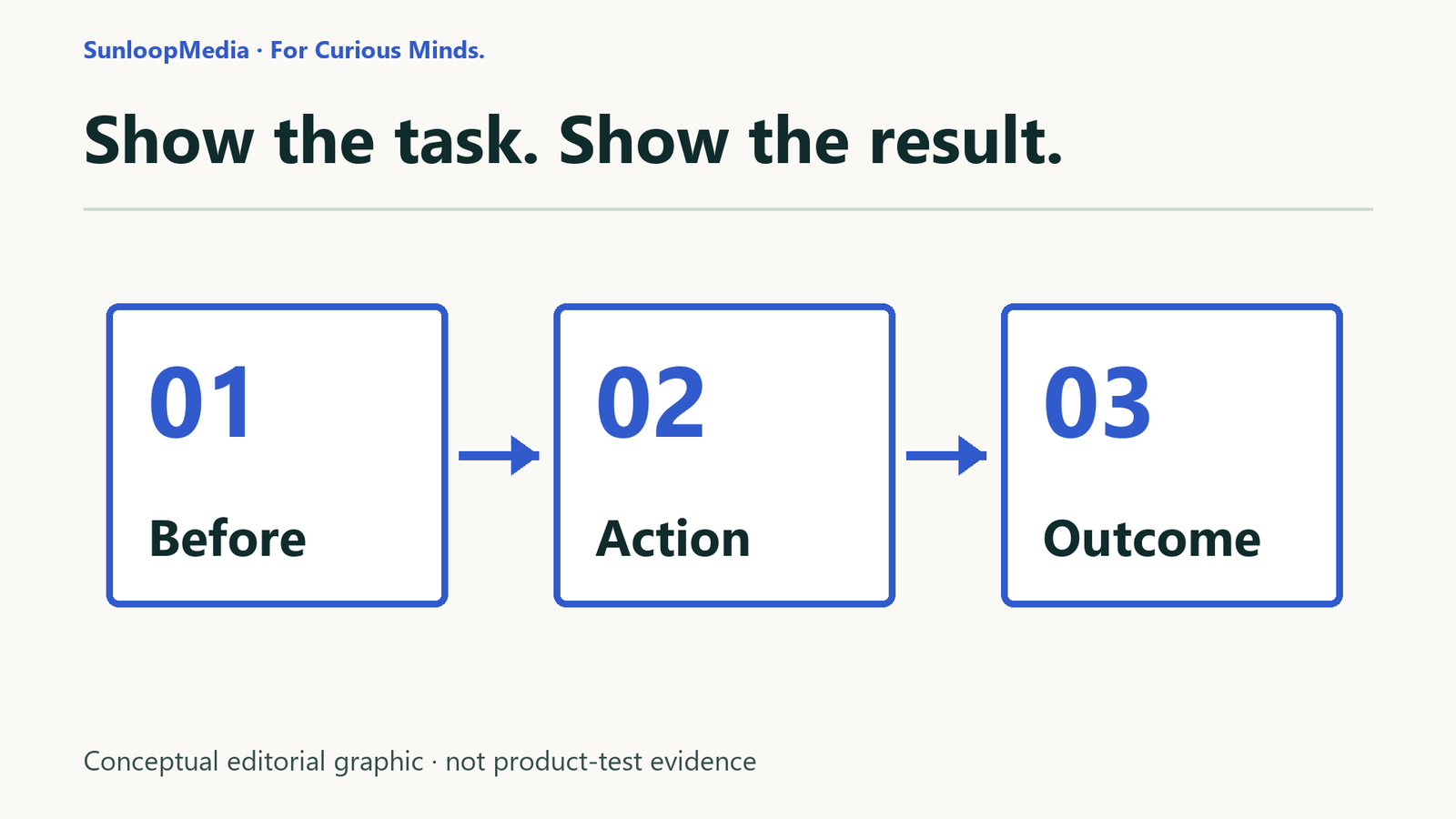
A screen recording can contain every click and still leave its viewer wondering what happened. The problem is often the explanation: an unclear starting point, text too small to read, a sudden jump, or a final screen that never confirms the task worked.
Build the walkthrough around one outcome. Here is a short process for planning, recording and checking it, with a harmless synthetic search task you can reuse.
Verification note: these instructions are based on documentation, with one limited owner-operated Windows walkthrough. For the limited example, the owner manually recorded the synthetic Cedar search and saved a 10-second clip. Automated inspection sampled video frames and decoded the full file without errors; the owner separately confirmed repeated complete playback with the expected result. Automated inspection is not continuous human playback. This does not validate other devices, audio quality, accessibility or every recording scenario.
1. Define one visible outcome
Write: “After watching, the reader can…” For this example: find the Cedar task in a short text file and read its status, “needs review.” Avoid combining setup, installation, search, editing and exporting into one unexplained clip.
Use a disposable file containing only synthetic text. Do not open personal notes, account pages or confidential client material for a demonstration. Check filenames, tabs, notifications and surrounding windows as well as the document itself.
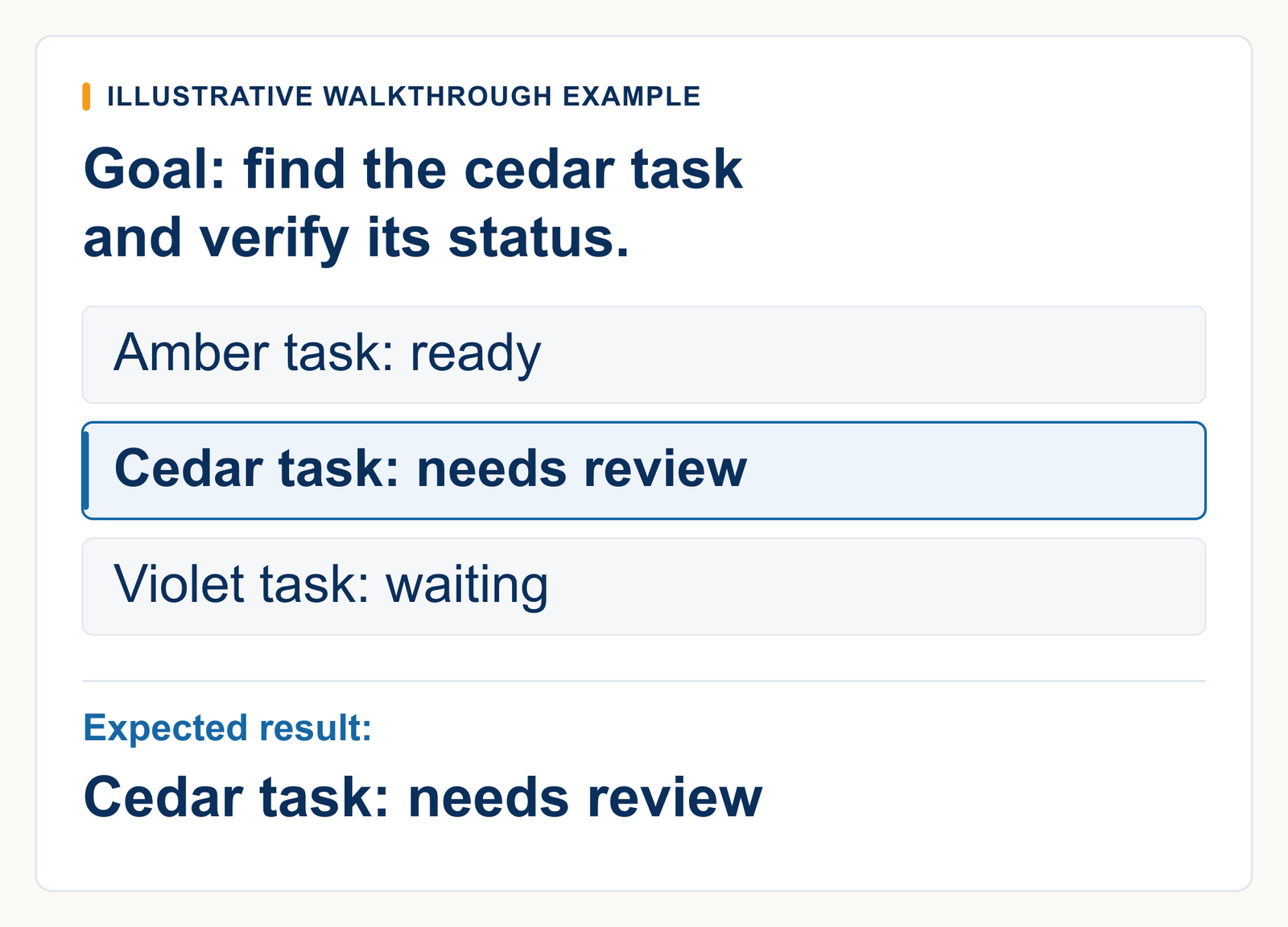
The illustration shows the prepared search example. It is not a software capture, a frame from the recording or testing evidence.
2. Plan three beats
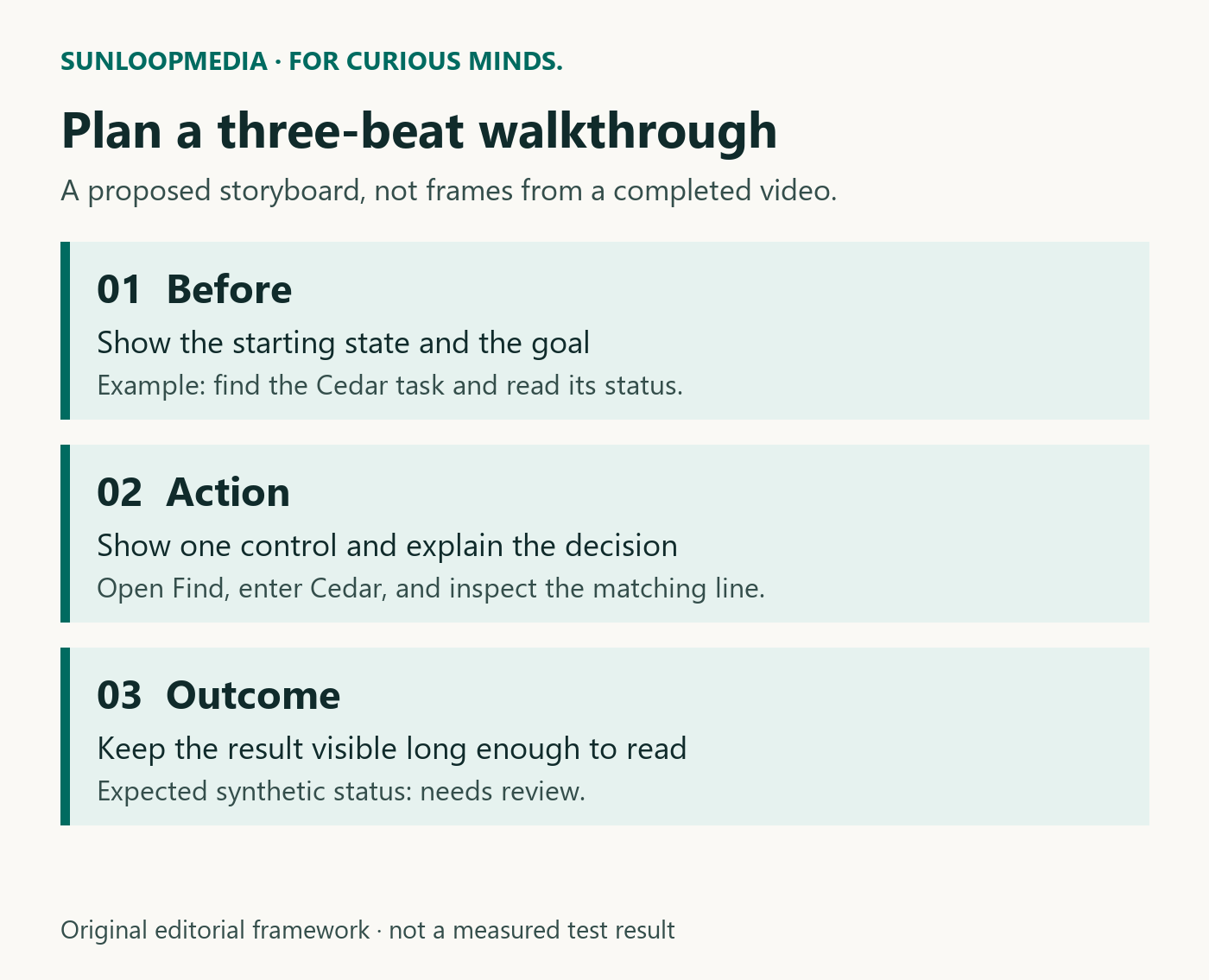
Before: show the file and say what the viewer is trying to find. The viewer should know the starting state before the pointer moves.
Action: show the search control, enter the distinctive word and move to the relevant match. Explain the action rather than naming every movement of the mouse.
Outcome: leave the matching line visible long enough to read its status. Say what counts as success. Do not stop immediately after clicking a control if the result has not appeared.
Keep a written version of these beats beside the recording plan. It gives the reader another way to follow the procedure and exposes missing steps before capture.
3. Frame for readable text
Open the required windows, make the relevant text comfortably readable and select only the area needed to understand the task. A wide desktop can shrink into unreadable detail in an article or on a phone. Keep enough context to show which control and result belong together.
For evidence stills, aim for a native high-resolution capture where available and preserve the original PNG. A focused inline crop plus the complete original is often more useful than shrinking the entire desktop. Do not sharpen or AI-reconstruct small UI text to make it look verified.
For video, inspect the saved result at the size your reader will use. Resolution metadata alone does not tell you whether the search term or result is readable.
4. Record with the available Windows tool
Microsoft documents this Snipping Tool path: open the app, choose Record, select New, choose an area, Start, perform the task, then Stop. Then save the recording, choosing or confirming a known location using the controls in your installed version. Reopen that saved file for the playback checks in Step 5; do not rely only on an in-app preview. Confirm the controls available in your own installed version rather than assuming that a screenshot from another version matches it.
The limited example used Snipping Tool on one Windows 11 device. Available controls and behavior can vary with the installed version.
If you cannot complete the recording locally, keep that step unverified. Do not replace an actual recording with a sequence of invented screenshots. Microphone, system audio, captions and cloud editing were not tested here and are not requirements for this silent synthetic example.
5. Review the saved recording
Open the saved recording from the location you confirmed and replay it from the beginning, rather than relying only on the editor timeline or an in-app preview. Check that the opening identifies the task, the search term is readable, actions happen in a sensible order and the final status remains visible. Pause where the viewer must make a decision.
Then check at a smaller viewing size. If the important text cannot be read, capture a narrower region or enlarge the example before making another recording. Preserve the first file and note why it needed replacement; a better result should not erase the original test history.
Inspect the full recording for accidental personal information before sharing. A clean final frame does not prove every earlier frame was clean. Record whether audio is present rather than assuming a muted player means the file has no audio track.
6. Keep the clip and written steps consistent
Use the same task names and outcome in the article and the recording. If the video says Cedar but the written step says Amber, correct the mismatch before review. Use meaningful captions for stills and retain access to the larger image when detail matters.
Do not call an unreviewed clip accessible merely because it has a written description. Captions, audio descriptions and assistive-technology requirements depend on what the clip communicates and need their own checks. This Guide provides a written equivalent of its proposed silent task; it does not certify a finished video.
A final playback checklist
Can someone identify the goal before the first action? Can they read the control and the result? Is each decision explained? Is the final state visible? Are the written steps consistent? Has the complete file been checked for unintended information?
In this limited walkthrough, the saved clip showed the Cedar search, highlighted matches and the result after closing Find. The owner manually recorded the 10-second clip and confirmed complete playback; automated inspection separately checked sampled frames and full-file decoding. One successful synthetic task is useful evidence, not universal validation.
Sources and evidence
- Microsoft Support — Snipping Tool video capture 2026-10-15
Microsoft documents recording and saving. Separately, one manually operated Windows example was saved and replayed completely by the owner; automated inspection checked sampled frames and full-file decoding. Documentation does not prove that observation, and automated checks are not continuous human playback.
- Microsoft Support — recording alternative to Steps Recorder 2026-10-15
Documents Snipping Tool as a Windows 11 screen-recording option; this documentation does not establish the outcome of the limited example.
Editorial record
Testing status: Research / documentation based
For this specific piece, SunloopMedia’s owner confirms no payment, sponsorship, affiliate relationship, supplied review product/access or other commercial consideration. This confirmation applies to this piece’s current relationship state only, not site-wide or permanently.
SunloopMedia Editorial
Published by SunloopMedia Editorial. Sources, testing state and material corrections are recorded above.
Suggest a correctionSelect the link and copy it using your keyboard or device menu.