
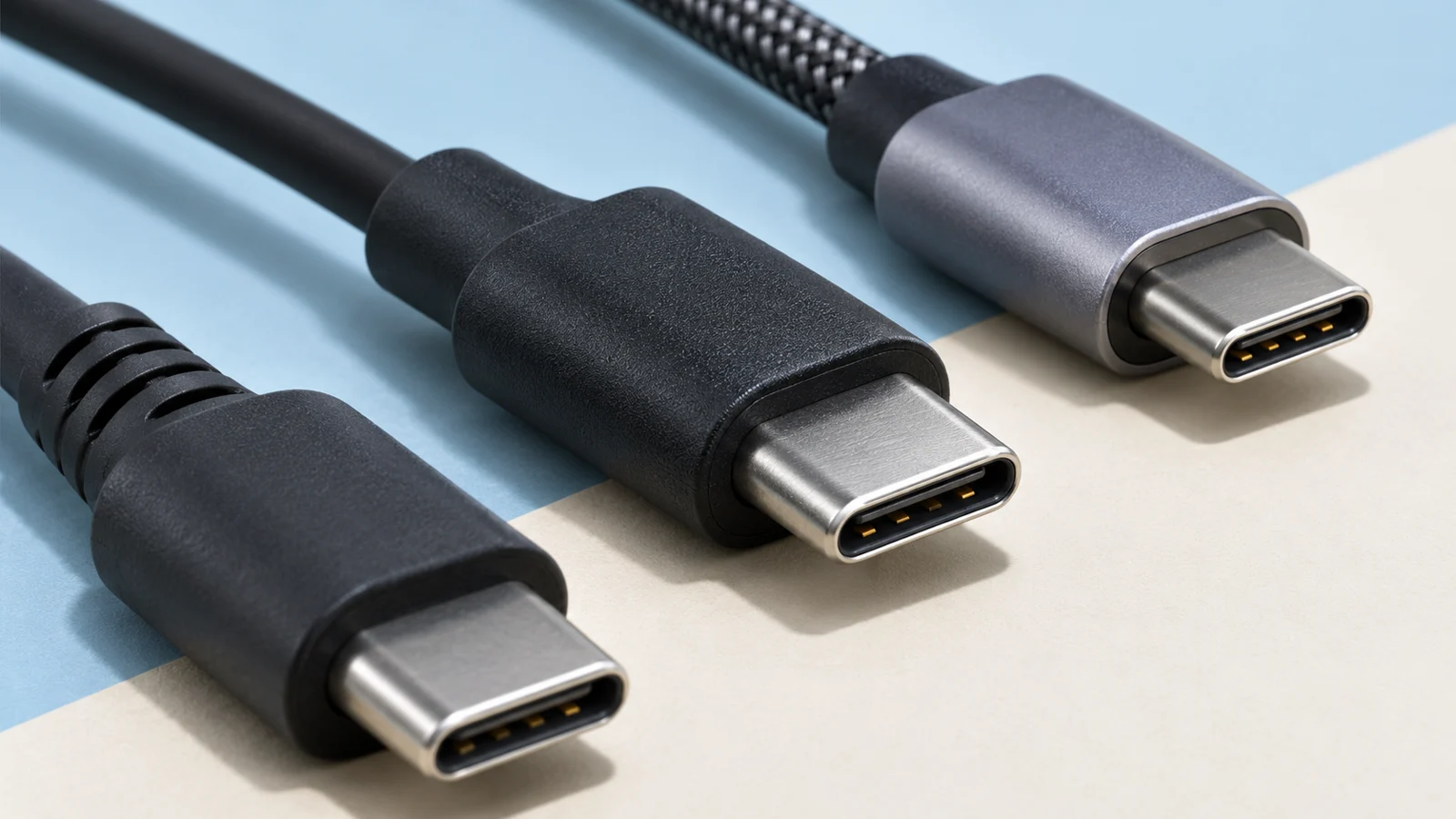
Two cables can fit the same laptop and be useful for different jobs. A connection that charges a phone may be unsuitable for a fast storage drive or an external monitor. The connector fitting is only the first check.
For USB-C, separate three questions: what data connection is supported, what power arrangement is supported, and how a display signal reaches the screen. Then check the complete connection rather than one promising label on the dock.
Shape and capability are separate specifications
The USB Implementers Forum’s Type-C terminology guidance explicitly separates USB Type-C from USB 3.2, USB4 and USB Power Delivery. Manufacturers can implement different capabilities behind that connector.
Its example of a USB 2.0 Type-C cable makes the distinction tangible: that cable can support Power Delivery while lacking the signals needed for USB 3.2, USB4 and alternate modes. Successful charging is therefore not proof of a high-speed data path or a display-capable cable.
Check the specifications for the particular port, not merely the laptop’s overall product description. A machine may have several similar-looking ports with different documented functions.
Check power without turning a maximum into a promise
USB Power Delivery is the mechanism for more flexible power arrangements over USB. USB-IF describes up to 240 watts under the PD 3.1 specification. That is a specification capability, not the power every USB-C charger, cable or computer will supply.
For your setup, record the computer’s required input, the charger’s supported output and the cable’s power rating. Include a dock’s stated power delivered to the computer if one is in the path. A headline rating does not answer all of those questions.
Avoid a purchase decision based only on “higher wattage”. Compatibility and the supported combination matter. Use the equipment maker’s recommended arrangement when the specifications are unclear; do not improvise adapters to force a charging connection.
A screen needs a supported video path
Microsoft’s USB-C notification reference distinguishes display-mode problems from power problems. It describes a limited-display warning when a connected DisplayPort or MHL device meets a system that does not support the required mode over that connection.
This helps explain a common-looking mismatch: a dock may receive power while the expected monitor connection remains unavailable. It does not identify the cause of every blank screen. The computer port, dock, cable and display settings still need to be matched to the intended video route.
Where the product uses DisplayPort over USB-C, look for that explicit support in the manufacturer’s documentation. Do not infer it from a reversible plug. Other dock technologies can have their own requirements; this is not a claim that all docks use the same method.
Use a three-line connection checklist
Before choosing or troubleshooting a cable, write down the task and the evidence for each part:
- Data: which USB data capability do the host, accessory and cable specify?
- Power: which input/output and cable ratings are relevant to this connection?
- Display: which video mode does the exact computer port and dock or adapter support?
For example, a constructed desk setup might need a monitor and a storage drive through one dock. A cable labelled for adequate charging has only answered the power question. You still need the dock’s documented display configuration and data connection; this article has not measured that hypothetical setup.
If the task is moving a project between devices, also distinguish transport from the output itself. Our app-export guide explains why moving a file successfully does not establish that an export retained the information you needed.
Keep a capability record, not a guess
Save the exact port, cable and accessory specifications for the connection you use. If one detail is missing, treat that function as unconfirmed rather than assuming the most capable version of USB-C.
This is a standards-and-documentation explanation, not a cable, charger or dock test. It cannot promise a transfer speed, charging rate or display resolution for your hardware. It gives you the separate questions those measurements would need to answer.
Editorial record
Testing status: Research / documentation based
No commercial relationships.
SunloopMedia Editorial
Published by SunloopMedia Editorial. Sources, testing state and material corrections are recorded above.
Suggest a correctionSelect the link and copy it using your keyboard or device menu.