
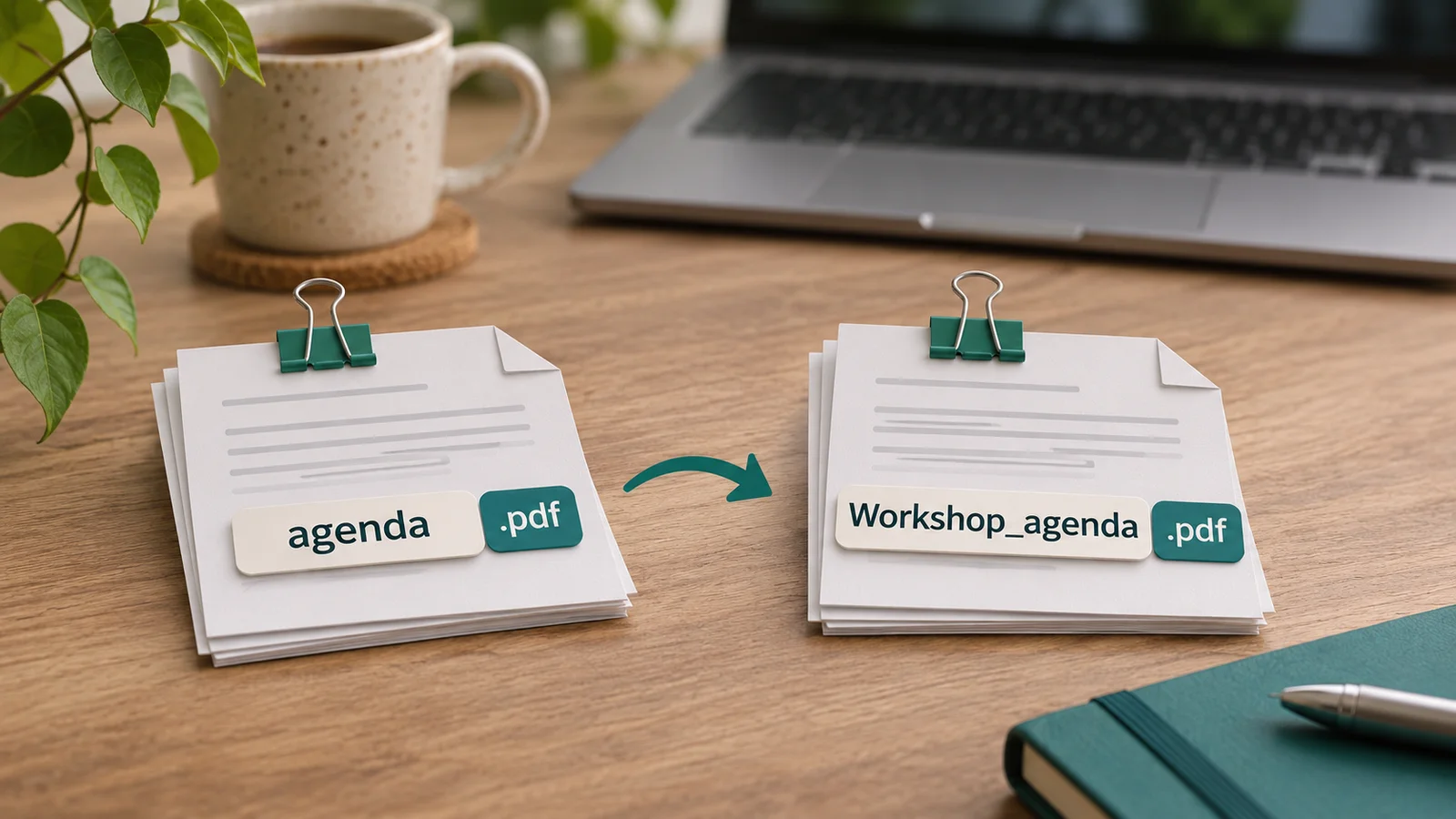
Adding Workshop_ to a group of filenames should not also change .pdf into part of the label. PowerRename separates filename and extension operations, but the choice still needs checking before a batch rename.
This guide uses Microsoft's documented controls and a small hypothetical file set. No rename, collision or undo test was performed by SunloopMedia. Treat the examples as patterns to inspect on disposable copies, not a promise that a batch is safe.
Write the intended names first
Start with copies in a separate local practice folder. Keep them outside folders used by active projects, automated imports or shared workflows. Renaming can matter to a person or application that expects a particular path, even when the file still opens.
For this invented pair, the desired prefix operation is:
| Original | Intended result |
|---|---|
agenda.pdf | Workshop_agenda.pdf |
slides.pptx | Workshop_slides.pptx |
A suffix has a different position: agenda_review.pdf, not agenda.pdf_review. Naming the expected output makes it easier to notice the wrong scope or a repeated suffix.
Set the scope before the pattern
With PowerToys installed and PowerRename enabled, select only the practice files in File Explorer and open Rename with PowerRename. Microsoft documents a preview of original and proposed names.
Choose Filename only under Apply to. Review folder and subfolder inclusion rather than assuming the current selection limits every operation. Check remembered options whenever you reopen the utility.
For the prefix example, enable regular expressions, enter ^ in Search for, and Workshop_ in Replace with. For the suffix example, use $ and _review. Microsoft's PowerRename documentation describes these anchors as the beginning and end of the filename.
Read every proposed name in the small batch
Check both extensions in the preview. If you see a suffix after an extension, stop and inspect Apply to. If the name already starts with Workshop_, adding another prefix is probably not your intended outcome.
Do not combine prefix, case conversion and numbering while learning the workflow. One change gives you a clearer comparison. Expand the task only after the expected names are unambiguous.
Also look beyond the example rows: are there folders, unrelated files or names that could become identical? If the preview is unclear or an error appears, leave the operation unapplied. This article does not establish collision-handling behavior for your version.
Apply to the copies and inspect the result
Only apply once the preview matches the written plan. In File Explorer, compare the resulting names with that plan, count the expected files and open the practice documents in their normal applications. A matching filename and an opening file answer different questions.
Microsoft documents undo support, but this article does not verify its availability after other actions or application changes. Keep the originals instead of making undo your only recovery plan.
Before renaming important material, consider links, shortcuts and project references that use the old names. A backup preserves a way back; a preview describes a proposed change. Neither establishes that every dependent application will continue to work.
If someone supplies a complicated expression
Ask them to explain what it should match and provide expected before-and-after names. Apply the same scrutiny to an AI-generated expression. Our AI-answer checking guide provides a useful way to separate a plausible suggestion from a supported result.
This procedure covers simple prefix and suffix decisions on copied files. It does not test linked projects, cloud-sync behavior, long paths or bulk-rename performance.
Editorial record
Testing status: Research / documentation based
SunloopMedia Editorial
Published by SunloopMedia Editorial. Sources, testing state and material corrections are recorded above.
Suggest a correctionSelect the link and copy it using your keyboard or device menu.